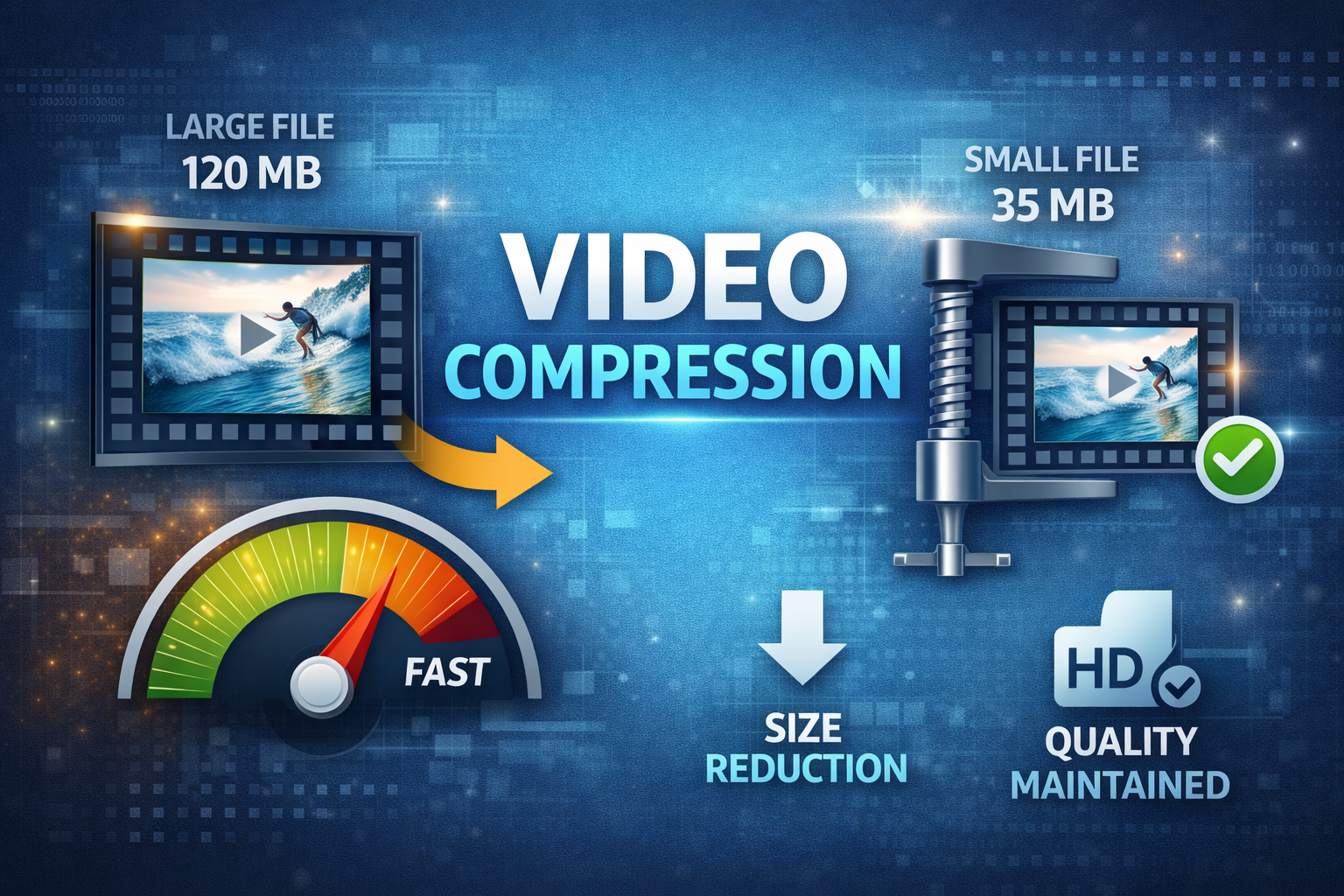
Video files can be massive – a single minute of 4K footage can take over 1GB. Whether you're uploading to social media, sending via email, or saving storage space, proper video compression is essential. In this guide, we'll show you the optimal settings to reduce video size by up to 90% while maintaining excellent quality, based on industry standards from YouTube, Netflix, and encoding experts.
📑 Table of Contents
Understanding Video Compression
Video compression works by removing redundant data and using efficient encoding algorithms. The key factors affecting video size are:
- Codec: The compression algorithm (H.264, H.265/HEVC, AV1). Codec choice determines 30-50% of file size difference.
- Bitrate: Amount of data per second (higher = better quality, larger file). Bitrate has the biggest impact on file size.
- Resolution: Frame dimensions (1080p, 4K, etc.). Reducing resolution cuts file size by 75%.
- Frame Rate: Frames per second (fps). Dropping from 60fps to 30fps reduces size by 50%.
Video Codec Comparison (2026)
| Codec | Compression vs H.264 | Hardware Support | Best For |
|---|---|---|---|
| H.264 (AVC) | Baseline | 100% devices | Universal compatibility |
| H.265 (HEVC) | 50% better | 80% devices (post-2018) | High quality at lower bitrate |
| AV1 | 30% better than H.265 | 60% devices (growing) | Web streaming, YouTube |
| VP9 | 40% better | 70% browsers | Google products, web video |
Best Settings by Platform
YouTube
- Codec: H.264 or AV1
- Resolution: 1080p or 4K
- Bitrate: 8-12 Mbps (1080p)
- Audio: AAC 192 kbps
- Codec: H.264
- Resolution: 1080×1350 (portrait)
- Bitrate: 5 Mbps
- Max size: 100 MB
TikTok
- Codec: H.264
- Resolution: 1080×1920
- Bitrate: 5 Mbps
- Max: 200 MB, 60fps
- Codec: H.264
- Resolution: 720p or 480p
- Bitrate: 2-5 Mbps
- Target: Under 25MB
Pro Tip: CRF Encoding
For the best balance of quality and file size, use H.264 codec with CRF (Constant Rate Factor) 23. This automatically adjusts bitrate based on content complexity.
CRF Values:
• 18-20: Visually lossless (for archiving)
• 21-23: High quality (for web sharing)
• 24-27: Good quality (for email)
• 28-30: Acceptable (low bandwidth)
How to Compress Videos Using Our Tool
- Open Video Compressor: Go to our free video compression tool
- Upload Video: Select your MP4, MOV, or AVI file (up to 500MB)
- Choose Quality: Select from presets (High, Medium, Low)
- Adjust Resolution (Optional): Reduce resolution if needed (e.g., 4K → 1080p)
- Select Codec: Choose H.264 (best compatibility) or H.265 (smaller file)
- Compress: Click compress and wait for processing (typically 10-30 seconds)
- Download: Save your compressed video
Comparison: Before vs After
| Setting | Original (4K) | Compressed (1080p H.264) | Compressed (720p H.265) |
|---|---|---|---|
| File Size | 500 MB | 45 MB (91% reduction) | 18 MB (96% reduction) |
| Resolution | 3840×2160 | 1920×1080 | 1280×720 |
| Bitrate | 60 Mbps | 8 Mbps | 3 Mbps |
| Codec | ProRes | H.264 | H.265 |
Understanding Video Codecs in Depth
H.264 (AVC - Advanced Video Coding)
Released: 2003
Best for: Universal compatibility, streaming, social media
Pros: Works on all devices, fast encoding, good compression
Cons: Older technology, not as efficient as newer codecs
H.265 (HEVC - High Efficiency Video Coding)
Released: 2013
Best for: 4K/8K video, archiving, modern devices
Pros: 50% better compression than H.264, supports 8K
Cons: Licensing fees, slower encoding, not supported on older devices
AV1
Released: 2018
Best for: Web streaming, YouTube, Netflix
Pros: Open-source, royalty-free, 30% better than H.265
Cons: Very slow encoding (10x slower), limited hardware support
Frequently Asked Questions
What's the best format for web video in 2026?
MP4 with H.264 codec is the universal standard – supported by all browsers and devices. For cutting-edge sites, serve AV1 with H.264 fallback.
How much can I compress a video without losing quality?
Typically 50-90% reduction depending on content. Simple animations (screen recordings) compress better than action movies with lots of movement. Our tool achieves 80-90% reduction for most videos with minimal visible quality loss.
What is the best codec for YouTube?
H.264 is recommended for uploads. YouTube also accepts H.265, VP9, and AV1, then transcodes to multiple formats for optimal streaming.
Should I use hardware or software encoding?
Software encoding (x264, x265) produces smaller files with better quality but is slower. Hardware encoding (NVENC, QuickSync) is faster but may have slightly lower quality. For web video, software encoding is recommended.
Ready to Compress Your Videos?
Try our free Video Compressor – no registration, no watermarks. Compress MP4, MOV, and AVI files instantly in your browser.
Compress Video Now →✓ 100% Free ✓ No Registration ✓ Works in Browser ✓ Private
Last updated: March 2026. This guide follows Google's Core Web Vitals standards and encoding best practices from Netflix, YouTube, and industry experts.